

AllWebMenus Pro
Cross-browser support - Multiple menu effects, styles & themes
Powerful menu positioning options - Unicode support - HTML edit capabilities
Multiple rows/columns - Addins/Plugins - Extensions - SEO Friendly - Sitemap support


Save time
No Code - WYSIWYG
Rich UI - For All Browsers
Any Editor - Any CMS
New features added to AllWebMenus Version 5
(for upgrade information please browse down the page)
This page lists all additions and enhancements implemented on version 5 over the older version 4.
If you are a new user or not aware of all the capabilities of AllWebMenus, please read the complete AllWebMenus features page for new users, otherwise continue reading below about what's new on version 5 alone.
SHORT LIST
OF VERSION 5 ADDED FEATURES AND ENHANCEMENTS
(with screenshots, descriptions and examples per feature)
(with history of build releases new page opens)
 Google Chrome browser supported
Internet Explorer 8 browser supported
All UNICODE languages/symbols supported (international menus)
Sliding menus supported (aka "collapsible/expandable/accordion" menus)
Use your own HTML code on selected menu items to achieve enhanced formatting or advanced functionality, from a simple working link, up to forms, flash objects, search boxes, even full-scale web pages!
(supported through the enhanced <Text> property)
The “Auto Item Highlight” feature added, which specifies whether an item whose property matches the URL of the loaded web page will be highlighted by default.
New submenu appearance effects added with the ability to set custom appearance time delays (supported through the enhanced “Submenu Group Appears - How” property)
New submenu disappearance effects added with the ability to set custom disappearance time delays (supported through the new “Submenu Group Disappears - How” property)
More stylish Themes are now included in the installation for free.
Floating Images can now be added to any of your menu items, allowing for even more creative menu implementations.
The Apply Theme dialog now allows you to view and choose Themes based on their <Type> ("Horizontal" or "Vertical"), facilitating your theme selection goals.
The Horizontal Menubar feature is now available for both Main Menu and Submenu Groups along with several enhancements, through the enhanced <Type> property.
Vertical Scrollbar for vertical Groups are now supported through the enhanced <Type> property. Automatic Scroll on Mouse Over also available.
Multiple Rows and Columns on Groups are now supported through the enhanced <Type> property.
A "Refresh" button now appears at the top-right corner of any property when its values are edited.
The "Menu Positioning" shortcut has been added.
The <Positioning> property is completely re-designed and enhanced, with a new positioning option added; you can now easily position your menu relative to an image existent in your pages.
The "Manual Trigger Groups - Get ID and Trigger Code" feature of the <Positioning> property is completely re-designed and enhanced.
The <Border> property now supports a different border type, size and color for each side (top, right, bottom, left) of a Group or Item.
Joomla Menu add-in & component available.
WordPress Menu add-in & plugin available. Create stylish menus for your WordPress blogs based on the structure of your blog! (i.e. blog posts, pages, etc.)
The "Ignore script in Preview Pane" option has been added in the 'Project Properties Advanced Scripting' form.
The "Change Item to Hidden/Visible" command has been added.
IE6 fix on select boxes (combos) now comes with more options to cover all cases (https websites for example).
The Main Menu Size now appears in Preview Pane, so that you have an estimation of how large the menu will render in actual browser.
20 new Textures added in Image Gallery.
20 new Buttons added in Image Gallery.
54 new Bullets and Arrows added in Image Gallery.
40 Icons now available into the new "Icons" Category of Image Gallery.
New Example Menu Projects added.
"Add Item Before" action now available when building the Menu Structure.
The "Check for Updates" command has been moved to the "Help" menu from the "Tools" menu.
The <Text Decoration> property now supports the Overline and Strikethrough options.
Ability to use custom variables instead of actual text in certain text-related properties has been added, allowing for more "dynamic" content in menus.
New "Server-Side Menus API Add-in" version available for adding database-driven or programmable functionality to your menus.
(extra fee applies for API licenses)
New service for AllWebMenus: Recover the "Menu Structure" of lost AllWebMenus project files (.awm) from their related javascript menu files (.js).
For more info: https://www.likno.com/blog/lost-allwebmenus-project/254/
Read what users of previous AllWebMenus versions say about the upgrade.
DETAILED LIST
OF VERSION 5 ADDED FEATURES AND ENHANCEMENTS
Google Chrome browser supported read more
Internet Explorer 8 browser supported read more
All UNICODE languages/symbols are supported in both the interface and menus. see UNICODE menu example
Sample Unicode languages supported:
Arabic, Basque,
Bulgarian,
Catalan,
Chinese (Mandarin),
Chinese (Simplified), Chinese (Traditional),
Croatian,
Czech,
Danish,
Dutch,
English,
Estonian,
Filipino (Tagalog),
Finnish,
Canadian French,
French,
Galician,
German,
Greek,
Hebrew, Hindi,
Hungarian,
Icelandic,
Indonesian (Bahasa),
Italian,
Japanese,
Kazakh,
Korean,
Latvian,
Lithuanian,
Malay,
Norwegian,
Persian (Farsi),
Polish,
Brazilian Portuguese,
Portuguese,
Romanian,
Russian,
Serbian (Cyrillic),
Slovak,
Slovenian,
Spanish,
Spanish (Mexico),
Swedish,
Thai,
Turkish,
Ukrainian,
Urdu,
Vietnamese, and many more!
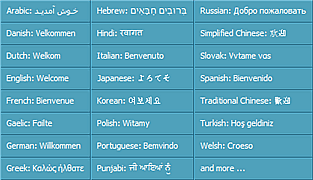
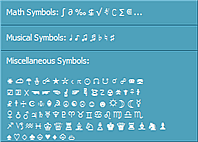
Sample Unicode symbols (math, music symbols, etc.) supported:
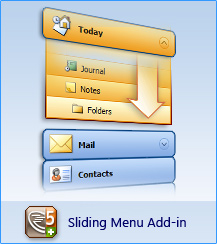
Sliding menus supported
Create menus with sliding submenus, otherwise known as "slide menus", "expandable menus", "collapsible menus" or "accordion menus", through the Sliding Menu Add-in (extra license).
Use your own HTML code on selected menu items to achieve enhanced formatting or advanced functionality, from a simple working link, up to forms, flash objects, search boxes, even full-scale web pages! see html menu example
(supported through the enhanced <Text> property)
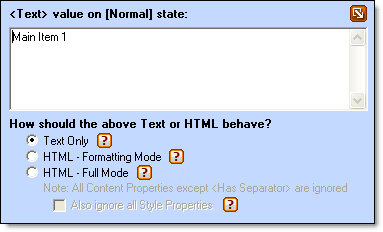
- You can now show anything you like on an item through HTML code, like multiple click areas (<a> tags) with different destinations.
- You can now have an active form inside an item (for example: "Subscribe to our newsletter: [ ] [go]")
- You can add flash objects inside an item
- You can add an iframe and load a web page inside an item
- ...and many more! (see screenshot of the example below)
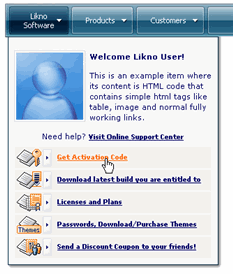
(a broad range of new capabilities is now open, let us know how you use this functionality and what else would you like to be able to do through this feature)
The “Auto Item Highlight” feature added (under the “Advanced” section of the Main Menu’s Group Properties), which specifies whether an item whose property matches the URL of the loaded web page will be highlighted by default.
Example:
If your web menu has a “Company” item that links to the company.html page:
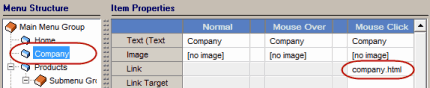
...and you browse the following URL:

...your menu can appear as follows:

(when you set the "Auto Item Highlight" to "Yes")
New submenu appearance effects added with the ability to set custom appearance time delays.
(supported through the enhanced <Submenu Group Appears - How> property)
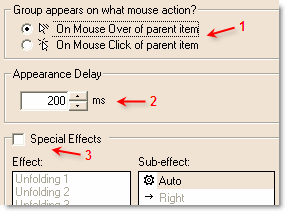
- Arrow [1] shows that the functionality of the old <Appears - When> property has been transferred to the enhanced <Appears - How> property, so that all features related to how the group appears are together.
- Arrow [2] shows the new "Appearance Delay" feature. You can now specify how many milliseconds should the mouse remain over the parent item in order for the group to appear.
- Arrow [3] shows the "Special Effects" feature. All "Unfolding" effects are now smoother than before and a new "Unfolding 3" effect has been added.
New submenu disappearance effects added with the ability to set custom disappearance time delays.
(supported through the enhanced <Submenu Group Disappears - How> property)
- Now you can also specify how the group disappears, allowing you to use many interesting effects in how your menus appear and disappear.
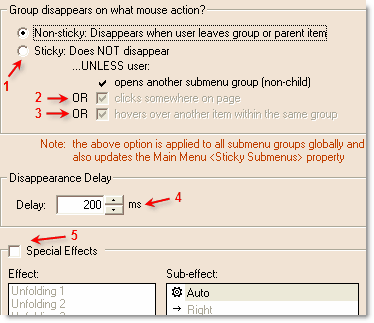
- Arrow [1] shows that you can specify if all submenus are "sticky" or "non-sticky" within a group property, teamed with other "disappearance-related" values.
- Arrows [2] and [3] show some new interesting variations of "sticky" submenus.
By unchecking the default check on arrow [2] you can have the last opened submenu always visible, regardless of what the user does on the rest of the page.
By also unchecking the default check on arrow [3] you can simulate a TAB-like behavior for the menu, as at least one submenu will always remain open no matter what happens on page or menu (see "XP Tabs" online example).
- Arrow [4] shows the "Disappearance Delay" feature. You can specify how many milliseconds should the mouse move away from the group in order for the group to disappear. This option gives extra time to the group to remain open if the mouse accidentally slips out of the group and gets back again within the time limit specified.
- Arrow [5] shows the "Special Effects" feature. You can specify an effect for the disappearance of the group. Combined with the "Appearance Method" of the <Appears - How> property, you can have interesting effects when navigating from submenu to submenu. A group can disappear using a "special effect". Unfolding 1, 2 and 3 effects are slightly different versions of the unfolding effect. Moreover, there are additional effects for the disappearance of the submenu in IE5.5+ browsers. These IE5.5+ only values make the submenu disappear using the "Unfolding 2" effect in the non-IE5.5+ browsers.
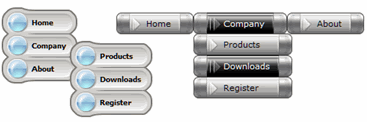
More stylish Themes are now included in the installation for free.
Floating Images can now be added to any of your menu items, allowing for even more creative menu implementations.
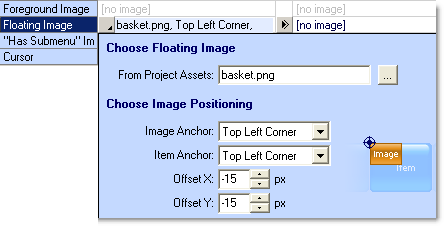
- The advantage of a "floating image" is that it appears above the item's layer, which means that it may also exceed the item's area.
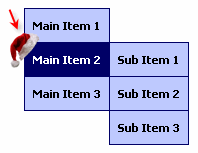
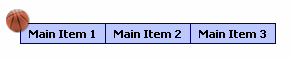
- For example, you can simply decorate your website menu for christmas by just adding a "floating image" on the items you want and for any state (Normal, Mouse Over or Mouse Click):
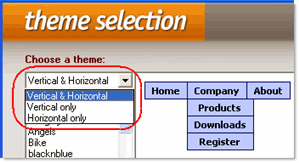
The Apply Theme dialog now allows you to view and choose Themes based on their <Type> ("Horizontal" or "Vertical"), facilitating your theme selection goals.
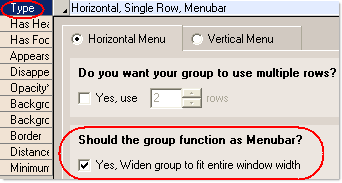
The Horizontal Menubar feature is now available for both Main Menu and Submenu Groups along with several enhancements, through the enhanced <Type> property.
Vertical Scrollbar for vertical Groups are now supported through the enhanced <Type> property.
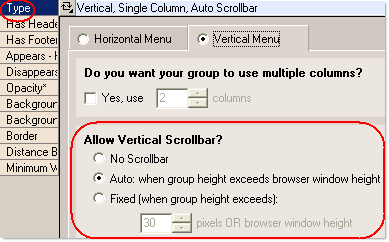
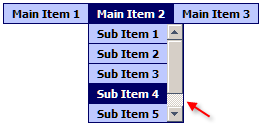
Since AllWebMenus version 5.1.774, the <Type> property also includes the Automatic Scroll on Mouse Over feature. example
Multiple Rows and Columns on Groups are now supported through the enhanced <Type> property.
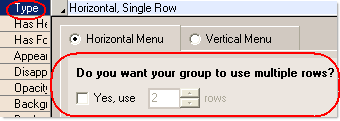
Multiple Rows: 
Multiple Columns: 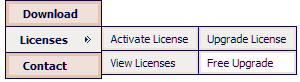
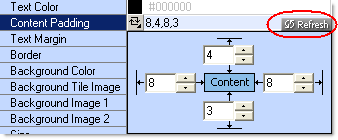
A "Refresh" button now appears at the top-right corner of any property when its values are edited. This lets you quickly refresh your menu preview without leaving the property layer that you currently edit.
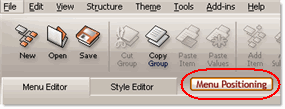
The "Menu Positioning" shortcut has been added.
The <Positioning> property is completely re-designed and enhanced.
- You can now implement all positioning methods easier.
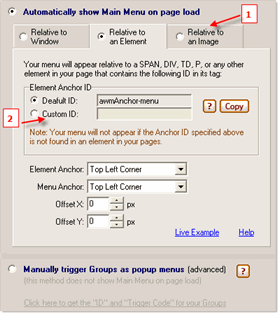
- Arrow [1] shows the new "Image-relative" positioning method. You can now choose to position your menu based on an actual image that exists in your pages. The advantage of this new positioning method is that you do not need to add any extra "ID" parameters inside your pages (apart from the menu-linking code which must always be present, regardless of the positioning method used).
- Arrow [2] shows that the "Element-relative" positioning now supports a custom Anchor ID (eg: "ID123" instead of the default "awmAnchor-menu"). This is very useful when your websites are created through an Authoring tool or a CMS that adds default "ID" tags in all tables. In that case, it is now easy to use one of these IDs to specify your positioning instead of the "awmAnchor-menu" ID.
The "Manual Trigger Groups - Get ID and Trigger Code" feature of the <Positioning> property is completely re-designed and enhanced.
With this method you have the ability to make individual groups popup by adding special trigger code on selected elements in your page.
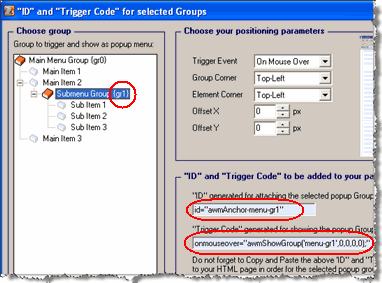
This is a very flexible method that can be used for achieving any of the following:
- Keep your entire menu hidden until an event occurs (eg: a menu popups when you put your mouse over an image or link). You can even replace the default right-click menu of your browser with your own menu! (see "How Do I, Replace the default right-click menu used by the browser" topic of AllWebMenus Help)
- Let actual elements of your page (images, links, etc.) be the ones that trigger the submenus instead of Main Menu items. In this case, you have total control of the layout of your page as you do not need to keep room for a rectangle where the Main Menu appears. You can even create cyclical menus with this method!
Manual Trigger Groups example
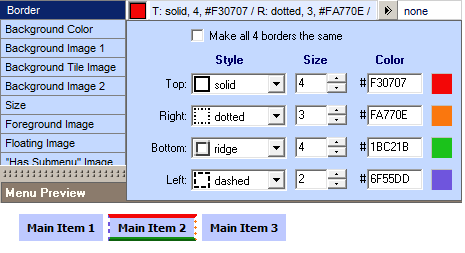
The <Border> property now supports a different border type, size and color for each side (top, right, bottom, left) of a Group or Item.
Joomla Menu add-in & component available. Retrieve your Joomla menu from your Joomla website and import it into the AllWebMenus application to create stylish, feature-rich navigation menus, but not only! Fully customize your joomla menus adding your own non-joomla menu items with external or internal links, html-rich content, colors, borders, effects, designs of your choice and many more.
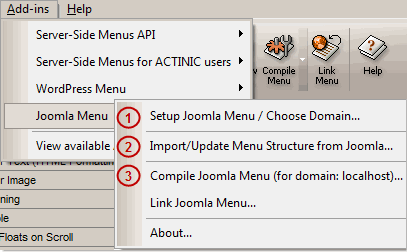
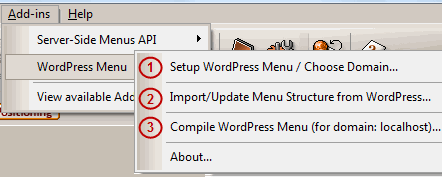
WordPress Menu add-in & plugin available. Create stylish menus for your WordPress blogs based on the structure of your blog! (i.e. blog posts, pages, etc.)
Fully customize your wordpress menus adding your own non-wordpress menu items with external or internal links, html-rich content, colors, borders, effects, designs of your choice and many more.
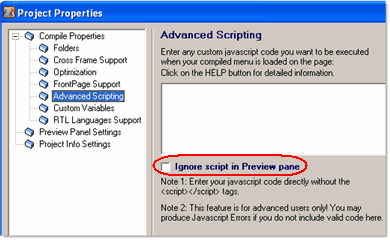
The "Ignore script in Preview Pane" option has been added in the 'Project Properties Advanced Scripting' form.
- This is very helpful, as you will not receive script errors in the Preview Menu panel when using scripts in the 'Advanced Scripting' property. These script errors may appear in Preview when your script refers to elements and functions that exist in your actual pages but obviously do not exist in the AllWebMenus preview page.
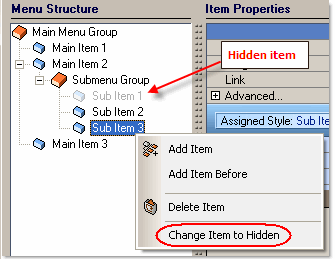
The "Change Item to Hidden/Visible" command has been added.
- You can have hidden items or groups in the project. This means that while you can work on these items or groups in design mode, you will be able to exclude them from the compiled menu. This is useful for:
- maintaining "draft" items or groups or designs
- defining more "styles" that can be used in Server-Side Menu implementations
- allowing for "empty" groups to be defined so that they are populated on-the-fly through a Server-Side Menu implementation.
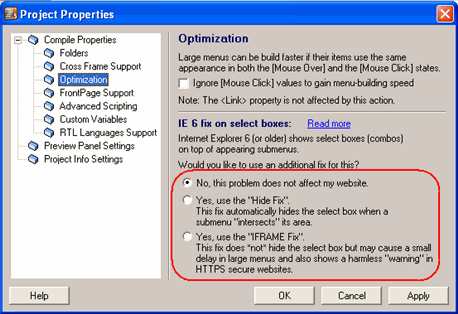
IE6 fix on select boxes (combos) now comes with more options to cover all cases (no "warning" on https websites for example).
- It appears that Internet Explorer 6 shows select boxes (combos) above submenus by default, something that does not occur on any other browser. In that case you should check this option, which adds special code in the compiled javascript menu to cure the problem.
- Now you have 2 options to choose from:
- The "Hide Fix", which automatically hides the select box when a submenu "intersects" its area. (recommended fix)
- The "IFRAME Fix", which uses an IFRAME to solve the problem without hiding the select box when a submenu intersects its area.
This option has two small inconveniences: It may cause a small delay in very large menus and may show a harmless "warning" if you use it in HTTPS secure websites.
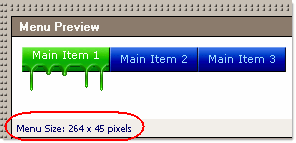
The Main Menu Size now appears in Preview Pane, so that you have an estimation of how large the menu will render in actual browser.
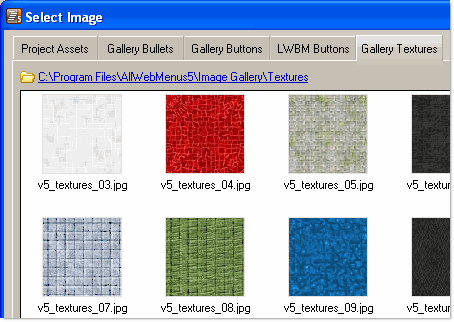
20 new Textures added in Image Gallery.
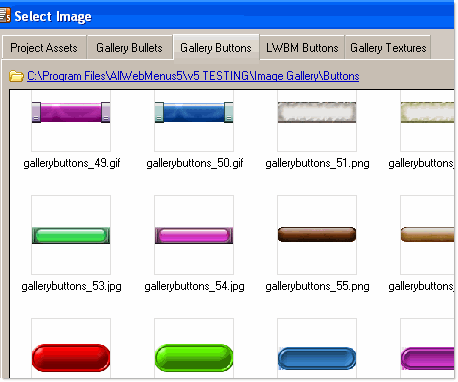
20 new Buttons added in Image Gallery.
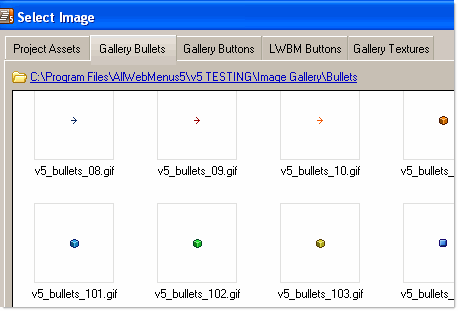
54 new Bullets and Arrows added in Image Gallery.
40 Icons now available into the new "Icons" Category of Image Gallery.

New Example Menu Projects added.
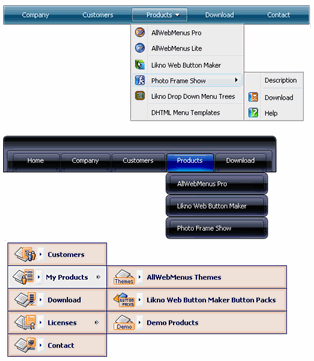
"Add Item Before" now available when building the Menu Structure.
The "Check for Updates" command has been moved to the "Help" menu from the "Tools" menu.
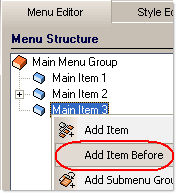
The <Text Decoration> property now supports the Overline and Strikethrough options.
Ability to use custom variables instead of actual text in certain text-related properties has been added, allowing for more "dynamic" content in menus. Custom variables are javascript variables that can be used instead of actual text in menu items, so that these items show different text on different conditions.
The syntax of a custom variable is:
<awm:myvar> OR <awm:myvar/> (whichever you prefer)
The properties where a custom variable can be used are:
ITEM PROPERTIES
- <Text>
- <Link>
- <Status Bar Text>
- <Tooltip>
GROUP PROPERTIES
- <Header Text>
- <Header Tooltip>
- <Footer Text>
- <Footer Tooltip>
Click on the "More info" button for details on this particular feature.
For example, you may have a menu item that reads "Prices in Euros" but you would like the "Euros" text to be different according to a database value. You can use the following value in the <Text> property instead:
"Prices in <awm:currencyvar>"
Then, you can have special javascript code inside your page (before your menu-linking code), that specifies a value for this variable based on some criteria.
You can assign default initial values to your variables through the new "Project Properties -> Compiled Variables" form:
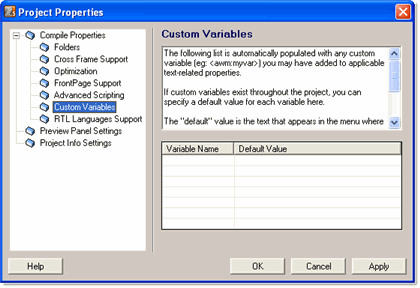
In the "Custom Variables" compile property you can specify default initial values for any custom variable (eg: <awm:myvar>) you may have added to the applicable text-related properties.
The “default” value is the text that appears in the menu where the variable is located. This value can be changed in HTML prior to the menu-linking code (which builds the menu), allowing you to alter the appearing text based on your conditions or preferences.
Example on how a custom variable is used:
Suppose you add a custom variable, called "currencyvar", in the <Text> property of an item:

You then click on the "Tools Project Properties" menu OR
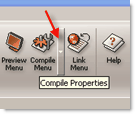
the "Compile Properties" toolbar button:
You click on the "Custom Variables" option and see the "currencyvar" variable already detected and added to the list.
Suppose you set the default value of the variable to "Euros":
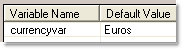
This will result to the following text on the menu item by default:

Now, suppose that you are using PHP (same applies to any other language).
You can specify a different value for the "currencyvar" javascript variable through the following sample code:
<body>
<?
$country = $_GET['country'];
switch ($country) {
case "EU":
case "Germany":
case "Greece":
case "France":
case "Spain":
default:
$cur = "Euros";
break;
case "UK":
$cur = "British Pounds";
break;
case "US":
$cur = "US Dollars";
break;
}
//Any custom variable used in the AllWebMenus project must take a value *before* the menu-linking code builds the menu!
//Otherwise, the "default" value of the variable will be shown.
//The below line sets the value to the custom javascript variable:
echo "<script type='text/javascript'>var currencyvar = '$cur';</script>";
?>
<!-- ******** BEGIN ALLWEBMENUS CODE FOR menu ******** -->
<script type="text/javascript">var MenuLinkedBy="AllWebMenus [4]",awmMenuName="menu",awmBN="628";awmAltUrl="";</script>
<script charset="UTF-8" src="menu.js" type="text/javascript"></script><script type="text/javascript">awmBuildMenu();</script>
<!-- ******** END ALLWEBMENUS CODE FOR menu ******** -->
<!-- HTML of the page continues below... -->
Assuming that the $country variable is set to "US", the following text will appear on the menu item:

In general, you can specify the value of any "custom variable" used in the AllWebMenus project through javascript code:
<script type='text/javascript'>
var variable1 = value1;
var variable2 = value2;
</script>
The only important thing to remember is that you have to enter the above code BEFORE the menu-linking code, otherwise the DEFAULT values of the variables will appear instead. The variables cannot be changed later on-the-fly, i.e. after the menu is build and shown.
Note 1: The list of custom variables is automatically populated through "smart crawling" of the applicable text-related properties. You cannot add or delete variables through the "Custom Variables" form, as this is done automatically by the crawling process
Note 2: This feature is for advanced users only! You may produce Javascript Errors if you do not use valid syntax in custom variables
See the custom variables example that demonstrates this feature.
New "Server-Side Menus API Add-in" version available for adding database-driven or programmable functionality to your menus.
(extra fee applies for API licenses)
See the Server-Side Menus API example that demonstrates this feature.
New service for AllWebMenus: Recover the "Menu Structure" of lost AllWebMenus project files (.awm) from their related javascript menu files (.js).
For more info: https://www.likno.com/blog/lost-allwebmenus-project/254/
ALLWEBMENUS IS IN CONSTANT DEVELOPMENT
MORE NEW FEATURES & THEIR DESCRIPTIONS WILL BE ADDED SOON
If you are not aware of all capabilities of AllWebMenus, please read the complete AllWebMenus features page for new users.
Examples of new features.
Read what users of previous AllWebMenus versions say about the upgrade.
Upgrade Info
Existing users of version 4 or older
please view upgrade information here
(prices, etc.)
AllWebMenus Pro
All Likno Products
 AllWebMenus
 Web Modal Windows Builder (jQuery)
 Web Tooltips
Builder (jQuery)
Web Tooltips
Builder (jQuery)
 Web Tabs Builder
(jQuery)
Web Tabs Builder
(jQuery)
 Web Accordion
Builder (jQuery)
Web Accordion
Builder (jQuery)
 Web Scroller
Builder (jQuery)
Web Scroller
Builder (jQuery)
 Web Button
Maker
Web Button
Maker
 Drop-Down
Menu Trees
Photo
Frame Show
Custom Project
Services
Drop-Down
Menu Trees
Photo
Frame Show
Custom Project
Services
Major Clients
Organizations from 112 countries have trusted and used Likno products for their Internet & Intranet website needs throughout the years!
A small sample of major organizations that have used our products follows below:
Companies
3M
Alcatel
American Airlines
American Express
Andersen Consulting
AT&T
AT&T Wireless
Bank of America
Bausch & Lomb
BellSouth Corporation
Bell Canada
Boeing
BP
CBS
Citibank
City Financial Group
Chevron
Compaq
Computer Associates
CPI
Deere & Company
DuPont
Ericsson
FedEx
Fidelity Investments
Ford Motor Company
GE
GMAC Insurance
Hewlett-Packard
IBM
Intel
Intuit
Johnson & Johnson
JP Morgan
Lockheed Martin
Lucent Technologies
Merck & Co.
Merril Lynch
MGM Studios Inc.
Microsoft
Motorola
Northwest Airlines
Philip Morris
Qwest
Schlumberger
Sprint
Sun Microsystems
Sybase
Thrifty Rent-A-Car
Time Warner Cable
Toys R Us
Volvo
Walt Disney World
Wells Fargo
Xerox
Click here to view Universities, Government Agencies and other organizations using our products.
Client Testimonials
"For over 5 years, the Likno Products have been ones of our most trusted web development tools. With excellent support and regular updates."

"Best menu creator tool out there! But best of all is their support! Friendly, knowledgeable, super to work with, and always keeping up with new technology. I wouldn't go anyplace else!"

"We are web developers and simply love your products. You do a superb job of updating them on a regular basis and they always work!"

Awarded as top software by several reviewers


Warning: Constant ABSPATH already defined in /usr/home/frames/public_html/likno/blog/wp-config.php on line 24
Fatal error: __autoload() is no longer supported, use spl_autoload_register() instead in /usr/home/frames/public_html/likno/blog/wp-includes/compat.php on line 502