Likno Web Tabs Builder
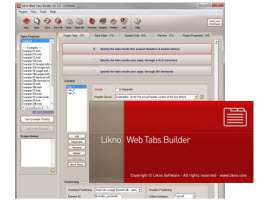
Examples of cross-browser, feature rich web tabs for your web sites!
Likno Web Tabs Builder
User Interface for creating any type of jQuery tab: html tab, javascript tab,
css tab, ajax tab, web tab, vertical tab, horizontal tab, dhtml tab, jquery ajax tab, etc.
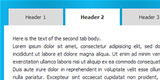
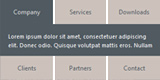
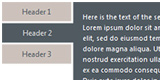
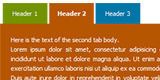
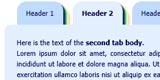
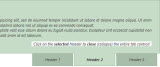
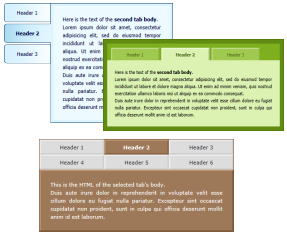
Click the tabs below for screenshots of example projects included in the application: Note: The following is also one of our tab controls, populated by "DIVs" in the source code of this page and with its "SlideShow" ("Play Tabs") option enabled (automatic "play")!
OR
Sit back, press play and view some examples in video:
OR
View Customer Use Cases (send us your own!)
"Horizontal Tab Control", used by the CareersinMusic.com
Application Notes:
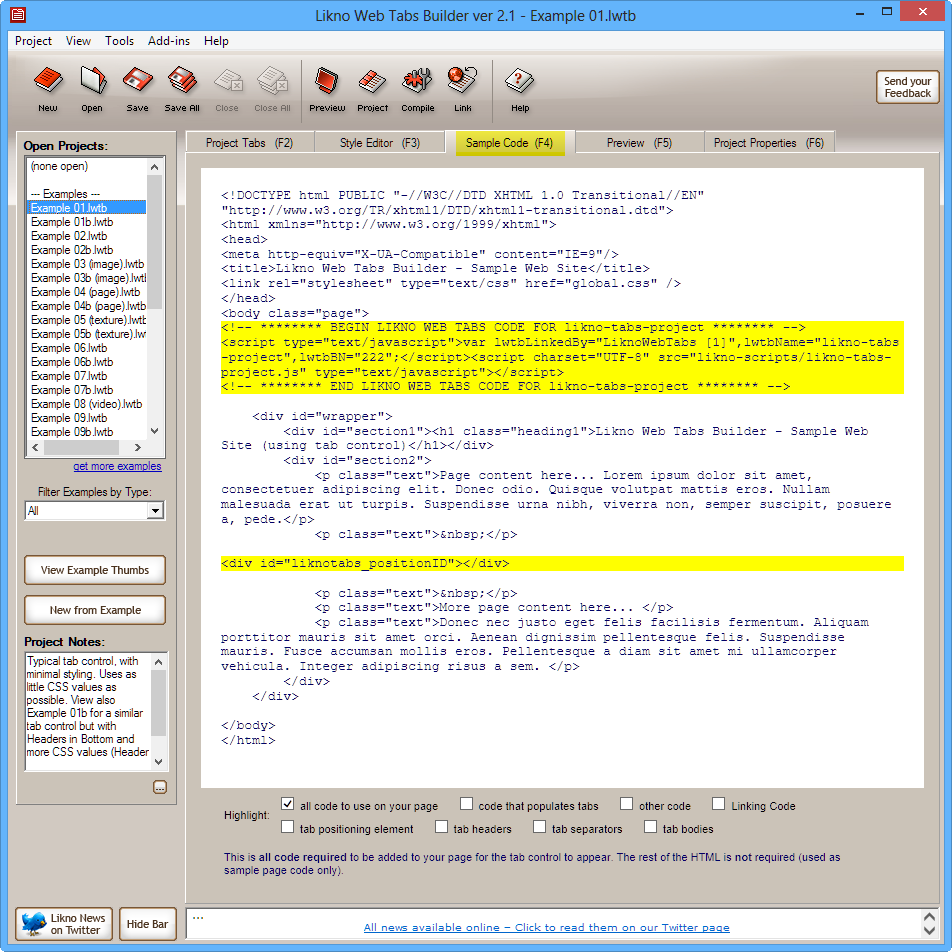
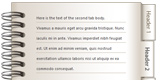
Headers *Outside Container*, placed to the *RIGHT* of the tab container. How? This is done through extra code that you should add to your page. Highlight the "other code" at the "Sample Code (F4)" panel to see that extra code. Also, the Body CSS uses a *background image* that yields the booklet appearance: background-image: url(example17bodybg.png); background-repeat: no-repeat; background-position: top left;
Application Notes:
*Both image and text* in Headers, through <img> tags in the HTML ("Embedded" header source). *Background image* is also used in Container CSS, Headers Extra CSS and Body CSS: background-image: url(example07bodybg.jpg);
Application Notes:
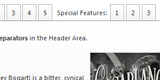
Headers *Outside Container*, placed *Both ABOVE and BELOW* the tab container. How? This is done through extra code that you should add to your page. Highlight the "other code" at the "Sample Code (F4)" panel to see that extra code. Also highlight the "tab bodies" to see that that code for the first 3 "tab headers" is above that highlighted code while the code for the last 3 "tab headers" is below that code.
Application Notes:
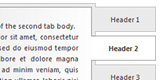
Headers *Outside Container*, placed to the *RIGHT* of the tab container. How? This is done through extra code that you should add to your page. Highlight the "other code" at the "Sample Code (F4)" panel to see that extra code.
Application Notes:
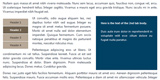
*Borders* applied in Headers CSS and Body CSS to distinguish the tab control from the page.
Application Notes:
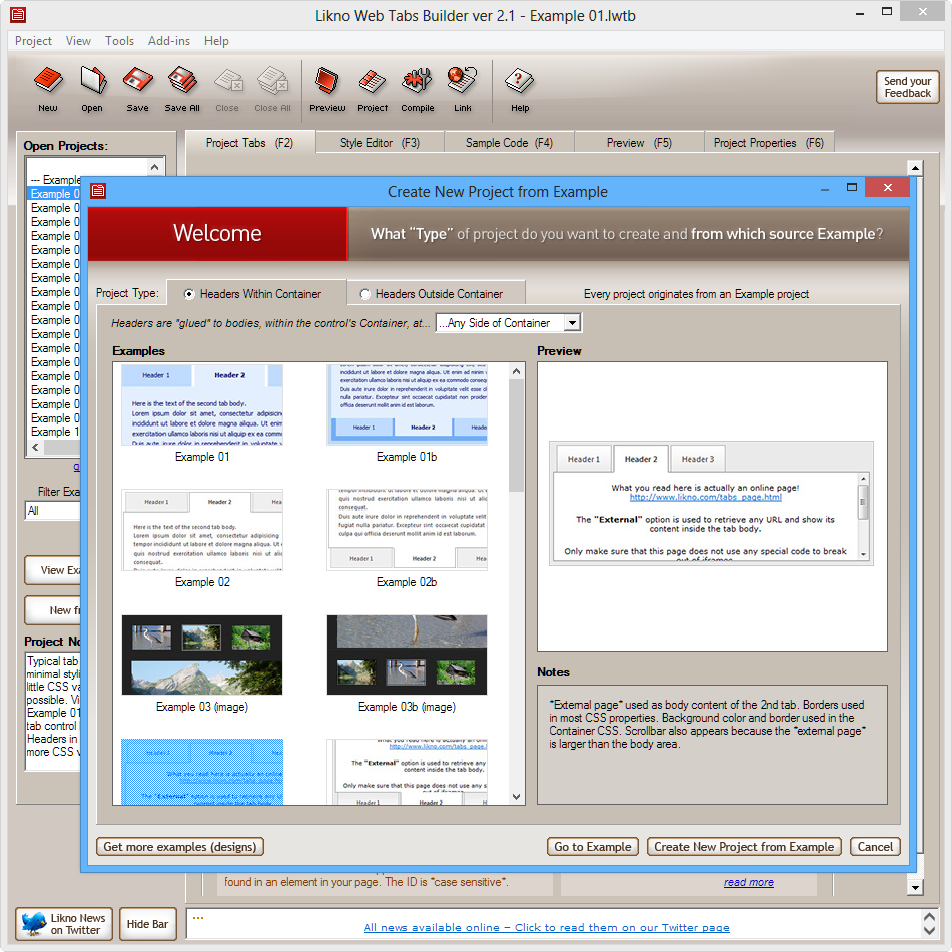
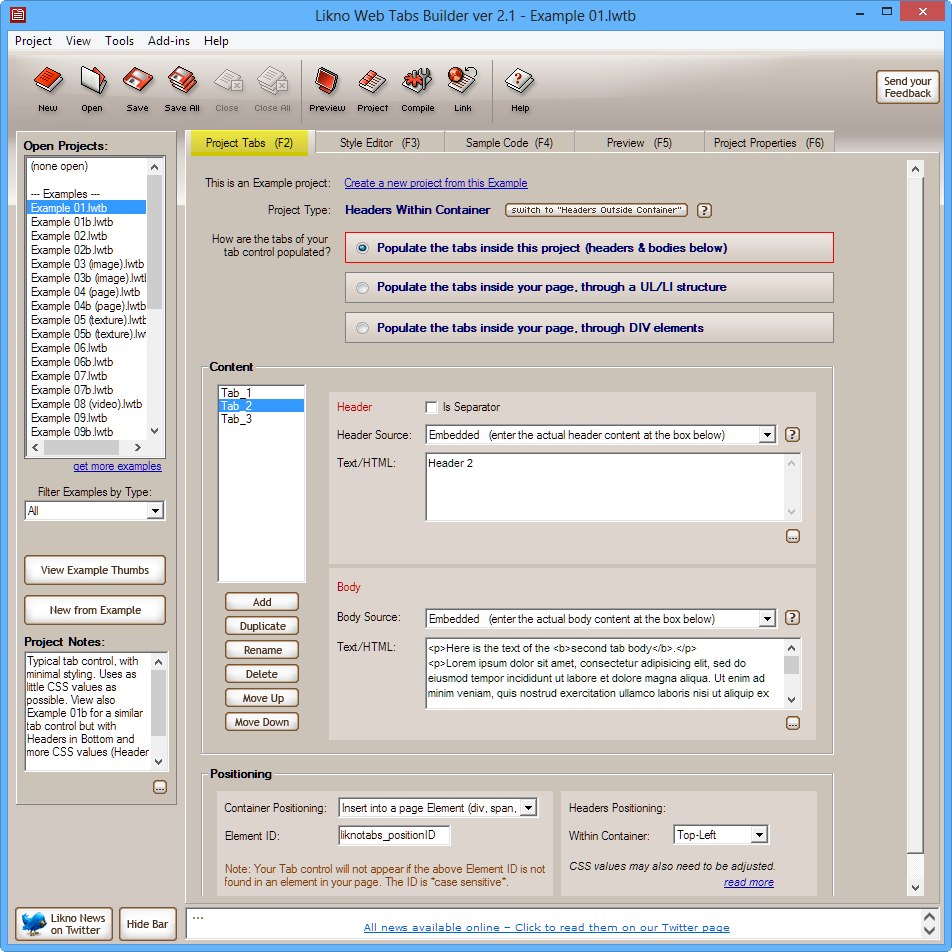
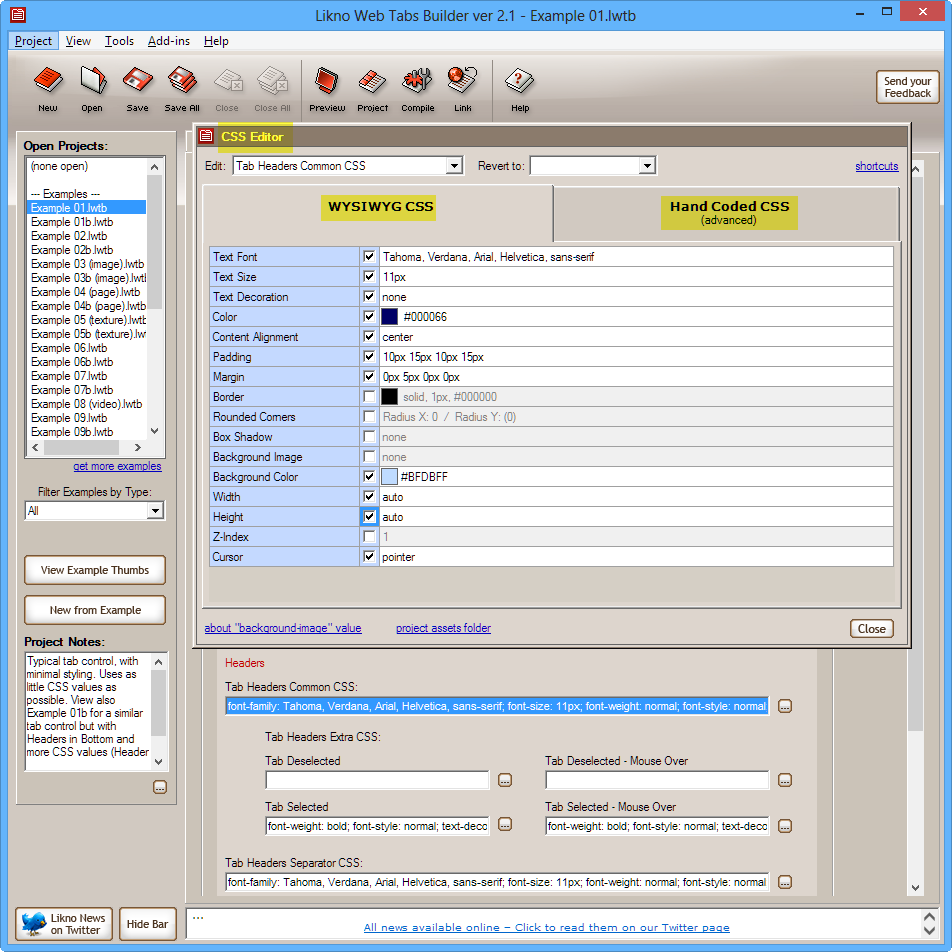
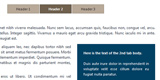
Typical tab control, with minimal styling. Uses as little CSS values as possible. View also Example "1b" for a similar tab control but with Headers in Bottom and more CSS values (Header Area CSS, Container CSS, etc.).
Application Notes:
Headers in *Bottom*. Typical tab control, with minimal styling. Like Example "1" but with Headers in Bottom and more CSS values (Header Area CSS, Container CSS, etc.).
Application Notes:
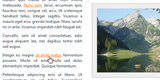
*Images* in both Headers and Bodies. Small images (thumbnails) on Headers, with their large images on their Bodies.
Application Notes:
*External page* used as body content of the 2nd tab. Borders used in most CSS properties. Background color and border used in the Container CSS. Scrollbar also appears because the *external page* is larger than the body area.
Application Notes:
*Texture* used around Headers/Bodies, within the Container. Texture applied through the Container CSS: background-image: url(example05texture.jpg);
Application Notes:
*Different types of content* used inside each tab body (Video, HTML, Image, External page, PDF, Ajax, etc.).
Application Notes:
*Video* (YouTube code) used as body content of the 2nd tab. *Image* used as header content for each tab. Background color and border used in the Container CSS.
Application Notes:
*Background Images* used on Headers Common CSS and Body CSS. Different background images used on "Tab Deselected - Mouse Over", "Tab Selected" and "Tab Selected - Mouse Over" to create a different header appearance for each state.
Application Notes:
*Background Image* with "no-repeat" on Container CSS (yields a fixed-size image as background). *Slide Down/Up* effects when showing and hiding the tabs.
Application Notes:
*Form* used as body content of the 2nd tab.
Application Notes:
Headers *Outside Container*, placed *ANYWHERE* on page. How? This is done through extra code that you should add to your page. Highlight the "other code" at the "Sample Code (F4)" panel to see that extra code. Also, the "Ignore Headers CSS" option is used in "Project Tabs (F2)", which makes the headers use the styling of the page CSS.
Application Notes:
Headers *Outside Container*, placed *ANYWHERE* on page. How? This is done through extra code that you should add to your page. Highlight the "other code" at the "Sample Code (F4)" panel to see that extra code.
Application Notes:
Headers *Outside Container*, placed to the *LEFT* of the tab container. How? This is done through extra code that you should add to your page. Highlight the "other code" at the "Sample Code (F4)" panel to see that extra code.
Application Notes:
*External page* used as body content of the 2nd tab. Borders used in most CSS properties. Background color and border used in the Container CSS. Scrollbar also appears because the *external page* is larger than the body area.
Application Notes:
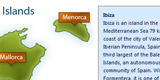
Headers *Outside Container*, placed *ANYWHERE* on page. How? This is done through extra code that you should add to your page. Highlight the "other code" at the "Sample Code (F4)" panel to see that extra code. The Headers are *Image Map Areas*.
Application Notes:
Headers *Outside Container*, placed *ANYWHERE* on page. How? This is done through extra code that you should add to your page. Highlight the "other code" at the "Sample Code (F4)" panel to see that extra code.
Application Notes:
*Different color* for each tab. How? By enclosing the Text/HTML content of each tab in a DIV and applying a different "background-color" (or any other CSS value) through "inline styles": <div style="...">
Application Notes:
*Rounded Corners* and multiple *Shadows*, for a 3D pseudo-effect (CSS3 browsers only).
Application Notes:
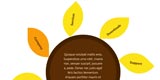
*Rounded* Headers *Outside Container*, placed *around* the tab container which is also *Rounded* (CSS3). How? This is done through extra code that you should add to your page. Highlight the "other code" at the "Sample Code (F4)" panel to see that extra code. Also highlight the "tab bodies" to see that that code for the first 3 "tab headers" is above that highlighted code while the code for the last 3 "tab headers" is below that code.
Application Notes:
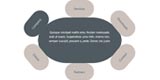
*Elliptic* Headers *Outside Container*, placed *around* the tab container which is *Rounded* (CSS3). How? This is done through extra code that you should add to your page. Highlight the "other code" at the "Sample Code (F4)" panel to see that extra code. Also highlight the "tab bodies" to see that that code for the first 4 "tab headers" is above that highlighted code while the code for the last 4 "tab headers" is below that code.