

AllWebMenus Pro
Cross-browser support - Multiple menu effects, styles & themes
Powerful menu positioning options - Unicode support - HTML edit capabilities
Multiple rows/columns - Addins/Plugins - Extensions - SEO Friendly - Sitemap support


Save time
No Code - WYSIWYG
Rich UI - For All Browsers
Any Editor - Any CMS
How to use AllWebMenus with CoffeeCup HTML Editor
AllWebMenus has a very simple and intuitive way for attaching your menus to web pages created with the CoffeeCup HTML editor:
Step 1: Specify the HTML files you wish to contain your menu
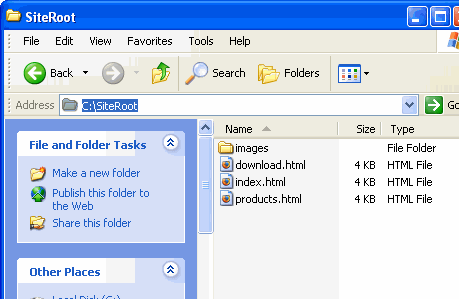
Suppose your web site is under the C:\SiteRoot local folder. This means that the HTML files that you wish to contain your menu are located inside that folder:
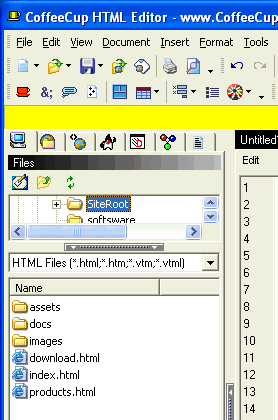
In CoffeeCup HTML editor your web site structure would appear as follows:
Step 2: Compile your menu
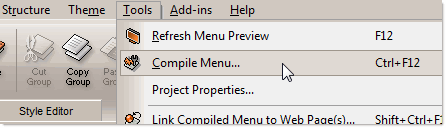
Click on "Tools Compile Menu" to compile your menu:
This opens the "Compile Menu As" dialog. Select a location under your C:\SiteRoot folder to save your compiled menu:
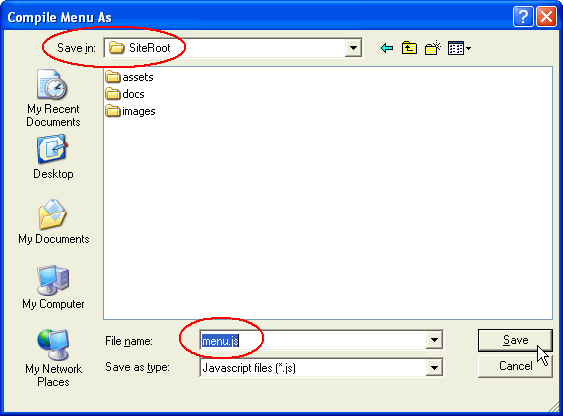
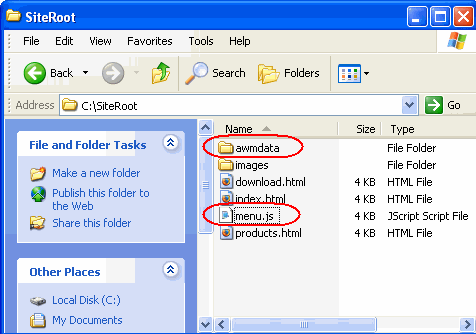
Once you do this step, all the necessary AllWebMenus files will be automatically saved inside the C:\SiteRoot folder:
Step 3: Link your menu to your web pages
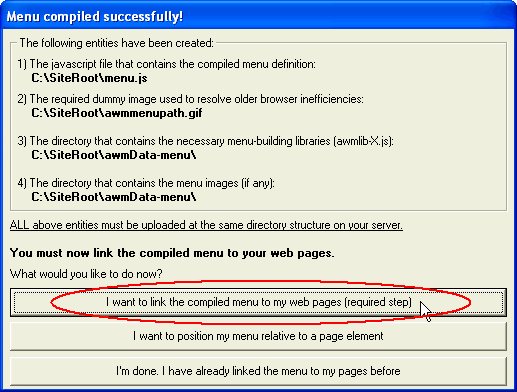
In the next AllWebMenus window, select the button that allows you to link the menu to your web pages.
The next window in AllWebMenus allows you to select the web pages that you wish to contain your menu. You can select many pages at once and link to as many pages as you wish.
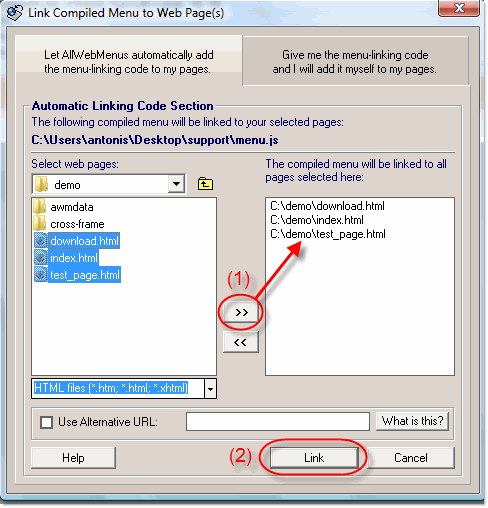
This process creates the necessary javascript code that runs your menu and adds it inside your HTML files.
Step 4: Publish your updated web pages and your compiled menu files
You can use the remote server features of CoffeeCup HTML editor or your favorite FTP client to upload all the necessary files to your web server.
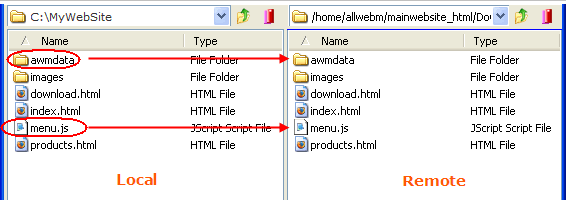
Remember to upload all the AllWebMenus files at the exact same position as they are created inside your local site structure (i.e. inside the C:\SiteRoot folder).
After uploading all the necessary files, your remote site should appear as follows:
Enjoy your menus online!
AllWebMenus Pro
All Likno Products
 AllWebMenus
 Web Modal Windows Builder (jQuery)
 Web Tooltips
Builder (jQuery)
Web Tooltips
Builder (jQuery)
 Web Tabs Builder
(jQuery)
Web Tabs Builder
(jQuery)
 Web Accordion
Builder (jQuery)
Web Accordion
Builder (jQuery)
 Web Scroller
Builder (jQuery)
Web Scroller
Builder (jQuery)
 Web Button
Maker
Web Button
Maker
 Drop-Down
Menu Trees
Photo
Frame Show
Custom Project
Services
Drop-Down
Menu Trees
Photo
Frame Show
Custom Project
Services
Client Testimonials
"For over 5 years, the Likno Products have been ones of our most trusted web development tools. With excellent support and regular updates."

"Best menu creator tool out there! But best of all is their support! Friendly, knowledgeable, super to work with, and always keeping up with new technology. I wouldn't go anyplace else!"

"We are web developers and simply love your products. You do a superb job of updating them on a regular basis and they always work!"

Awarded as top software by several reviewers


Warning: Constant ABSPATH already defined in /usr/home/frames/public_html/likno/blog/wp-config.php on line 24
Fatal error: __autoload() is no longer supported, use spl_autoload_register() instead in /usr/home/frames/public_html/likno/blog/wp-includes/compat.php on line 502