
Likno Web Button Maker
Stylish and poweful web buttons - Cool effects, shapes and styles
Broad array of colors, background, shadows, images
Customize dimensions, size, text options, lighting, links, and more!


Save time
No Code - WYSIWYG
Rich UI - For All Browsers
Any Editor - Any CMS
Page 4 of 11
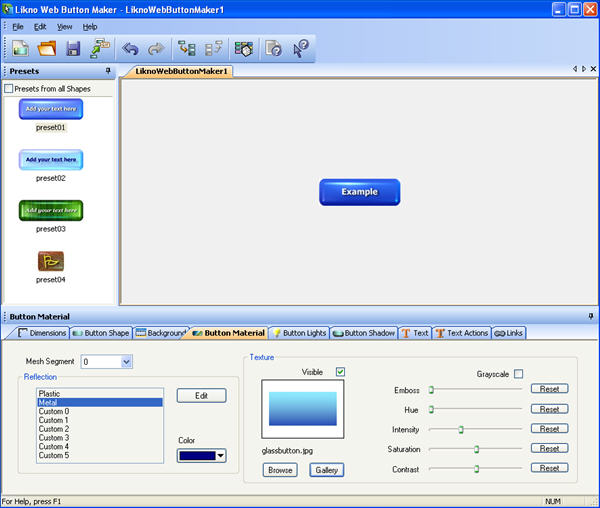
According to the design of your website pages or navigation bar, you might want to give your button a plastic, metallic, glassy look or your own customized style and effect.
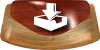
Example of a button with Plastic Material
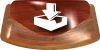
Example of button with Metallic Material
Define the reflection you want your button to have and choose the color you want to apply to it. Depending on the button you have selected, it might consist of one Mesh Segment or more.
In case your button consists of more than one Mesh segment you will need to select the specific segment you will edit and define a reflection for the selected segment. The reflection refers to how the light reflects on the specific segment of the button. This reflection gives you a view on the material. To do this you can select from the pre-defined ones, such as the Plastic or Metallic options, or customize your own.
To customize your own simply click on the "Edit" button, and define from the "Edit Reflection" window the values for the Diffuse, Specular and Power options in order to give your button a glassy, metallic, marble or any other type of reflection and look you want and like. The combination of the light color and the color reflected by the button gives us the resulting color of the button.
The material of the button results from the combination of colors used in the Diffuse and Specular parameters. In other words, a combination of a light color in the "Diffuse" parameter and a dark color in the "Specular" parameter, creates a "plastic" looking result. On the other hand, a dark color in the Diffuse parameter and a light color in the Specular parameter, creates a "Metallic" looking result. By also specifying the "Power" parameter, which determines how intense or soft the light reflection in the button will be, you can create different types of eye-catching and original buttons.
Finally, you can also add "Texture" to your button simply by checking the "Visible" check box to activate the texture option. Then you will be able to choose between the "Browse" and the "Gallery" options. You can choose the "Browse" option in order to select one of your images and use it as texture (based on its properties) or you may select one of the already existing textures found in our gallery through the "Gallery" option.
Example of buttons with texture:
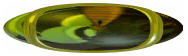
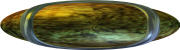
Then, after having selected the texture you can edit its properties (Emboss, Hue, Intensity, Saturation, Contrast) and Grayscale option by using accordingly the texture controls in order to give your button a specific effect based on the texture selected.
Likno Web Button Maker v2.0 Released!
A new version of our popular web button maker has been released!
In this new version we have included a major new feature, the Button Factory, which will allow you to quickly generate mind-blowing buttons. We have also included bug fixes related to the previous version. Simply, download now or check out what's new in this version!







Likno Web Button Maker
All Likno Products
 AllWebMenus
 Web Modal Windows Builder (jQuery)
 Web Tooltips
Builder (jQuery)
Web Tooltips
Builder (jQuery)
 Web Tabs Builder
(jQuery)
Web Tabs Builder
(jQuery)
 Web Accordion
Builder (jQuery)
Web Accordion
Builder (jQuery)
 Web Scroller
Builder (jQuery)
Web Scroller
Builder (jQuery)
 Web Button
Maker
Web Button
Maker
 Drop-Down
Menu Trees
Photo
Frame Show
Custom Project
Services
Drop-Down
Menu Trees
Photo
Frame Show
Custom Project
Services
Button Packs
We offer you various sets of Button Packs that you can purchase and use for the creation of your web buttons.
Button Packs are sets made up of completely new shapes and presets, textures, plus a series of ready-to-use web buttons which offers you a complete solution for your web button creation needs!
read moreClient Testimonials
"For over 5 years, the Likno Products have been ones of our most trusted web development tools. With excellent support and regular updates."

"Best menu creator tool out there! But best of all is their support! Friendly, knowledgeable, super to work with, and always keeping up with new technology. I wouldn't go anyplace else!"

"We are web developers and simply love your products. You do a superb job of updating them on a regular basis and they always work!"

Awarded as top software by several reviewers


Warning: Constant ABSPATH already defined in /usr/home/frames/public_html/likno/blog/wp-config.php on line 24
Fatal error: __autoload() is no longer supported, use spl_autoload_register() instead in /usr/home/frames/public_html/likno/blog/wp-includes/compat.php on line 502