The solution consists of a combination of 2 parts:
Our Likno Web Accordion Builder...(1/2)
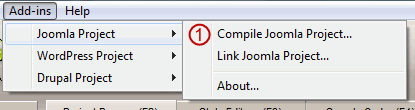
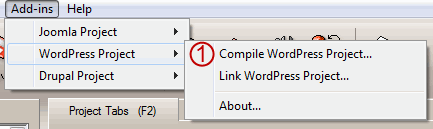
This already exists inside your Likno Web Accordion Builder installation (v2.0.200 or above only - no need to download and install separately), and can be accessed through the following menu:
& ...our special Joomla Component (2/2)
This is the component that you need to install on your Joomla website.
The component adds 2 plugins that must be enabled.
These plugins are Likno Web Accordion: Linker Plugin, and Likno Web Accordion: Accordion Button Plugin
The first adds the necessary linking code to your page, and scans your article/page to find an accordion while the seccond provides you an editor button to make inserting accordions inside a page/article easy.
The Joomla component supports 2 positioning options:
- The first is the normal Joomla module management. Upload the Accordion module produced by Likno Web Accordion Builder desktop application, go to module manager select it and select the module position that you want it to appear (don't forget to enable it).
- The second allows you to insert the accordion inside a page/article you want. The Accordion Plugin Button makes the whole process easy. Just Click it select the accordion you want, click insert and you are ready.
Note 1: You should disable a Likno Web Accordion module when you place it inside a page/article, or disable it for that page/article.
Note 2: You should keep in mind that actual accordion positioning is handled by the Likno Web Accordion Builder application. For example if you create a '"Floating" over page'" accordion, which is set as "Relative to Window", no matter which "block position" you choose from the module options the accordion will always appear relative to window.
Click below on the Joomla version of your desire, to Download the Joomla Component and see instructions on how to use it.

Download and install the Likno Web Accordion Component on Joomla
Step 1: Download the component's ZIP file
Download component for Joomla version 3.x
Release Version: |
1.0.3 |
License / Size: |
GNU/GPL
23 KB |
Requirements: |
This "Component" version (i.e. code installed on Joomla) requires Likno Web Accordion Builder v2.1.236 or above in your PC (click [About] on its [Help] menu to view its version) and Joomla version 3.x .
Download the latest Likno Web Accordion Builder if not installed yet.
|
Step 2: Install the component to your Joomla site
- Login to your Joomla administrator area.
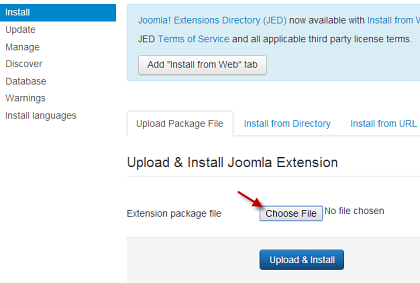
- Install the component by selecting the "Extensions > Extension Manager" item of the Joomla administration menu.
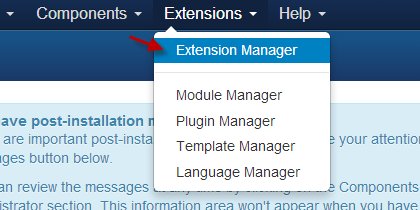 Then, click on "Choose File" and select the pkg_liknowebaccordion.zip file. After you have selected click on "Upload & Install" and you will receive the message "Installing package was successful".
-
When the "Likno Web Accordion Component" is successfully installed, "Likno Web Accordion: Linker Plugin" and "Likno Web Accordion: Accordion Button Plugin" are automatically installed.
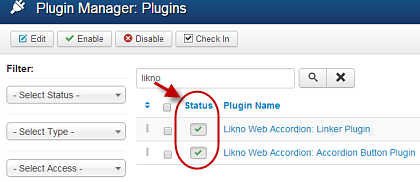
You need to enable them.
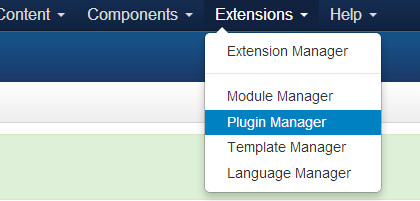
Go to plugins manager (found at Extensions > Plugin Manager item of the Joomla administration menu)
Enable these two plugins:
Likno Web Accordion: Linker Plugin, and
Likno Web Accordion: Accordion Button Plugin.
Configure and use the "Likno Web Accordion Builder Component" on Joomla
Step 1: Configure your accordion
Switch to the Likno Web Accordion Builder desktop application:
- Step 1 Configure your accordion (colors, borders, effects, styles, etc.) through the Likno Web Accordion desktop application.
- Step 2 Choose how/where your accordion is "positioned" inside your Joomla pages
While in Likno Web Accordion Builder software, you will find the Positioning property at the bottom of the Project Panes tab.
There are 2 different options to position your accordion in your pages:
- "'Embedded' in page"
Select this option if you want the accordion to appear 'embedded' in your page. There are 3 sub-options:
"Insert inside a page Element (div, span, td, etc)", "Replace a page Element", "Replace a page Image" (by using it's filename).
For the first 2 options the appropriate Page Element is populated by the Likno Web Accordion Builder module, produced by the application.
- "'Floating' over page"
Select this option if you want the accordion to appear 'floating' over your page.
Like the previous option there are also 3 sub-options available.
- First sub-option: "Relative to Window".
The accordion will appear("float") relative to window no matter which module position you choose.
- Second sub-option: "Relative to an Element"
The accordion will float relative to a page element. This Page Element is populated by the Likno Web Accordion Builder module, produced by the application.
- Third sub-option: "Relative to an Image"
The accordion will float relative to an image filename.
Note: For relative to window and relative to image positioning options, the "module position" does not affect the actual positioning of the accordion. However the module you must assign a position to module and enable it, otherwise it won't appear. Don't forget you can also place it inside a page/article (but this also does not affect it's positioning if it is relative to window or relative to image).
View how positioning works through detailed examples/use cases
Step 2: Setup, Compile and Upload the accordion files
While in Likno Web Accordion Builder desktop application:
Download and install the Likno Web Accordion Component on Joomla
Step 1: Download the component's ZIP file
Download component for Joomla version 1.6 - 2.5
Release Version: |
1.0.2 |
License / Size: |
GNU/GPL
16.9 KB |
Requirements: |
This "Component" version (i.e. code installed on Joomla) requires Likno Web Accordion Builder v2.0.200 or above in your PC (click [About] on its [Help] menu to view its version) and Joomla version 1.5 NATIVE or above.
Download the latest Likno Web Accordion Builder if not installed yet.
The latest "Add-in" (i.e. code within Likno Web Accordion Builder) is already included with the installation (since v2.0.200, Jun. 2011), so no separate download link exists for install.
|
Step 2: Install the component to your Joomla site
- Login to your Joomla administrator area
- Install the component by selecting the "Extensions > Install/Uninstall" item of the Joomla administration menu
- Go to plugins manager (found at extensions/Plugin Manager item of the Joomla administration menu) and enable these two plugins: Likno Web Accordion: Linker Plugin, and Likno Web Accordion: Accordion Button Plugin.
Configure and use the "Likno Web Accordion Builder Component" on Joomla
Step 1: Configure your accordion
Switch to the Likno Web Accordion Builder desktop application:
- Configure your accordion (colors, borders, effects, styles, etc.) through the Likno Web Accordion desktop application.
-
Choose how/where your accordion is "positioned" inside your Joomla pages
While in Likno Web Accordion Builder software, you will find the Positioning property at the bottom of the Project Panes tab.
There are 2 different options to position your accordion in your pages:
'Embedded' in page
Select this option if you want the accordion to appear 'embedded' in your page. There are 3 sub-options:
"Insert inside a page Element (div, span, td, etc)", "Replace a page Element", "Replace a page Image" (by using it's filename).
For the first 2 options the appropriate Page Element is populated by the Likno Web Accordion Builder module, produced by the application.
'Floating' over page
Select this option if you want the accordion to appear 'floating' over your page.
Like the previous option there are also 3 sub-options available.
- First sub-option: "Relative to Window".
The accordion will appear("float") relative to window no matter which module position you choose.
- Second sub-option: "Relative to an Element"
The accordion will float relative to a page element. This Page Element is populated by the Likno Web Accordion Builder module, produced by the application.
- Third sub-option: "Relative to an Image"
The accordion will float relative to an image filename.
Note: For relative to window and relative to image positioning options, the "module position" does not affect the actual positioning of the accordion. However the module you must assign a position to module and enable it, otherwise it won't appear. Don't forget you can also place it inside a page/article (but this also does not affect it's positioning if it is relative to window or relative to image).
View how positioning works through detailed examples/use cases
Step 2: Setup, Compile and Upload the accordion files
While in Likno Web Accordion Builder desktop application:
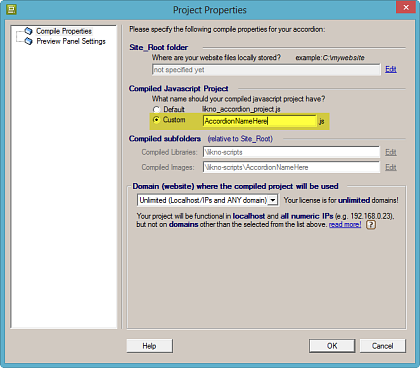
- Compile the accordion using the "Add-ins Joomla Project Compile Joomla Project" (item [1] on screenshot).
Note: When asked for "Site_Root folder" use any local folder on your hard drive you like for the compiled files to be produced. These files will be added in a ZIP file that will contain all the necessary accordion files.
- Upload the compiled accordion (the ZIP file mentioned above) via the Joomla administrator area. Go to Joomla extension installer by selecting "Extensions > Install/Uninstall" item of the Joomla administration menu. Select the accordion file from the location you selected above and upload it. Your Likno Web Accordion accordion has been successfully uploaded and installed.
Now you need to enable this module from Joomla Module Manager, and select it's position or place it inside an article, using the button found at the bottom of your editor.
Download and install the Likno Web Accordion Component on Joomla
Step 1: Download the component's ZIP file
Download component for Joomla version 1.5 (old)
Release Version: |
1.0.2 |
License / Size: |
GNU/GPL
16.9 KB
|
Requirements: |
This "Component" version (i.e. code installed on Joomla) requires Likno Web Accordion Builder v2.0.200 or above in your PC (click [About] on its [Help] menu to view its version) and Joomla version 1.5 NATIVE or above.
Download the latest Likno Web Accordion Builder if not installed yet.
The latest "Add-in" (i.e. code within Likno Web Accordion Builder) is already included with the installation (since v2.0.200, Jun. 2011), so no separate download link exists for install.
|
Step 2: Install the component to your Joomla site
- Login to your Joomla administrator area
- Install the component by selecting the "Extensions Install/Uninstall" item of the Joomla administration menu
- Go to plugins manager (found at extensions/Plugin Manager item of the Joomla administration menu) and enable these two plugins: Likno Web Accordion: Linker Plugin, and Likno Web Accordion: Accordion Button Plugin.
Configure and use the "Likno Web Accordion Builder Component" on Joomla
Step 1: Configure your accordion
Switch to the Likno Web Accordion Builder desktop application:
- Configure your accordion (colors, borders, effects, styles, etc.) through the Likno Web Accordion desktop application.
-
Choose how/where your accordion is "positioned" inside your Joomla pages
While in Likno Web Accordion Builder software, you will find the Positioning property at the bottom of the Project Panes tab.
There are 2 different options to position your accordion in your pages:
'Embedded' in page
Select this option if you want the accordion to appear 'embedded' in your page. There are 3 sub-options:
"Insert inside a page Element (div, span, td, etc)", "Replace a page Element", "Replace a page Image" (by using it's filename).
For the first 2 options the appropriate Page Element is populated by the Likno Web Accordion Builder module, produced by the application.
'Floating' over page
Select this option if you want the accordion to appear 'floating' over your page.
Like the previous option there are also 3 sub-options available.
- First sub-option: "Relative to Window".
The accordion will appear("float") relative to window no matter which module position you choose.
- Second sub-option: "Relative to an Element"
The accordion will float relative to a page element. This Page Element is populated by the Likno Web Accordion Builder module, produced by the application.
- Third sub-option: "Relative to an Image"
The accordion will float relative to an image filename.
Note: For relative to window and relative to image positioning options, the "module position" does not affect the actual positioning of the accordion. However the module you must assign a position to module and enable it, otherwise it won't appear. Don't forget you can also place it inside a page/article (but this also does not affect it's positioning if it is relative to window or relative to image).
View how positioning works through detailed examples/use cases
Step 2: Setup, Compile and Upload the accordion files
While in Likno Web Accordion Builder desktop application:
- Compile the tab control using the "Add-ins Joomla Project Compile Joomla Project" (item [1] on screenshot).
Note: When asked for "Site_Root folder" use any local folder on your hard drive you like for the compiled files to be produced. These files will be added in a ZIP file that will contain all the necessary accordion files.
- Upload the compiled accordion (the ZIP file mentioned above) via the Joomla administrator area. Go to Joomla extension installer by selecting "Extensions > Install/Uninstall" item of the Joomla administration menu. Select the accordion file from the location you selected above and upload it. Your Likno Web Accordion accordion has been successfully uploaded and installed.
Now you need to enable this module from Joomla Module Manager, and select it's position or place it inside an article, using the button found at the bottom of your editor.



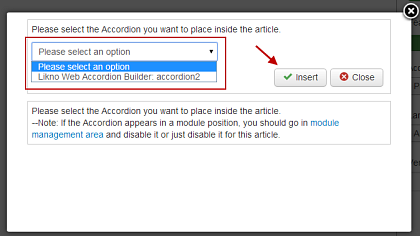 Select the accordion you want to place in your article and click "Insert".
  AllWebMenus
 Web Modal Windows Builder (jQuery)
 Web Tooltips
Builder (jQuery)
Web Tooltips
Builder (jQuery)
 Web Tabs Builder
(jQuery)
Web Tabs Builder
(jQuery)
 Web Accordion
Builder (jQuery)
Web Accordion
Builder (jQuery)
 Web Scroller
Builder (jQuery)
Web Scroller
Builder (jQuery)
 Web Button
Maker
Web Button
Maker
 Drop-Down
Menu Trees
Photo
Frame Show
Custom Project
Services
Drop-Down
Menu Trees
Photo
Frame Show
Custom Project
Services


