

AllWebMenus Pro
Cross-browser support - Multiple menu effects, styles & themes
Powerful menu positioning options - Unicode support - HTML edit capabilities
Multiple rows/columns - Addins/Plugins - Extensions - SEO Friendly - Sitemap support


Save time
No Code - WYSIWYG
Rich UI - For All Browsers
Any Editor - Any CMS
Information
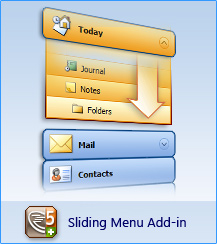
Through the Sliding Menu Add-in, you can create menus with sliding submenus, otherwise known as "slide menus", "expandable menus", "collapsible menus" or "accordion menus".
A submenu group can appear either as "drop-down" (non-sliding) or as "sliding".
A sliding submenu group pushes the items of its parent group downwards when opening (slide menu effect). In the same manner, it pulls these items upwards when it closes.
The trial version of the Add-in is pre-installed in AllWebMenus Build #766 or above. You can fully add/edit sliding submenus on your projects and view them on the "Menu Preview Pane" but you can actually compile them only if you have purchased and activated the extra Add-in license (or checked the "Sliding Menu Add-in" option when you initially purchased AllWebMenus).
Features & How to setup a sliding submenu
Choose a submenu group or style (note: Main Menu cannot be "sliding" itself) and select its <Type> property:
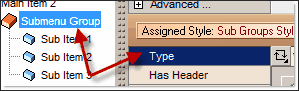
Click the property button, make it "vertical" and select the "Sliding" option:

Edit the related options to further customize the sliding behavior of the selected submenu group (or style):
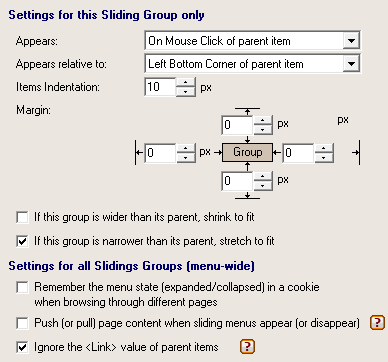
You can also specify settings which will apply to all sliding groups (menu-wide), such as:
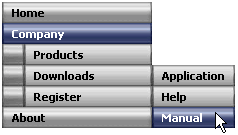
Note that every submenu group has its own <Type> property. Therefore, you can have a menu that contains both drop-down submenus and sliding submenus! (on any level you wish!) example
For more information on the settings click on the HELP icon  of the "Sliding" tab inside AllWebMenus.
Download Info
| Release Version: | 1.0.3 what's new |
| Download link: |
Not needed, this version of the Add-in is pre-installed in AllWebMenus Build #772 or above.
If you have an earlier version of AllWebMenus, download its latest version from the AllWebMenus download page (this will also install the latest Add-in version). |
| Notes: | You can fully add/edit sliding submenus on your projects and view them on the "Menu Preview Pane" but you can actually compile them only if you have purchased and activated the extra Add-in license (or checked the "Sliding Menu Add-in" option when you initially purchased AllWebMenus). |
Where to find Sliding Menu Themes/Templates/Examples
Sliding Menu Themes are available in the Menu Themes Gallery.

Sliding Menu Templates are available in the Menu Templates Gallery.
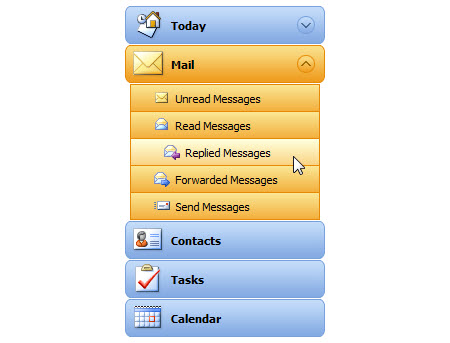
Sliding Menu Examples
are available in the AllWebMenus Examples page.
(i.e. examples that mention the word "Sliding" on their title)
AllWebMenus PRO
Add-ins
See also...
FrontPage Addin Dreamweaver Extension NOF Component Other supported toolsSliding Menu Themes
Download hundreds of ready-made sliding menu themes or templates and create stylish DHTML menus / JavaScript menus in just minutes.
Click on the link below to view our Menu Theme Gallery:
JavaScript Menu TemplatesClient Testimonials
"For over 5 years, the Likno Products have been ones of our most trusted web development tools. With excellent support and regular updates."

"Best menu creator tool out there! But best of all is their support! Friendly, knowledgeable, super to work with, and always keeping up with new technology. I wouldn't go anyplace else!"

"We are web developers and simply love your products. You do a superb job of updating them on a regular basis and they always work!"

Awarded as top software by several reviewers


Warning: Constant ABSPATH already defined in /usr/home/frames/public_html/likno/blog/wp-config.php on line 24
Fatal error: __autoload() is no longer supported, use spl_autoload_register() instead in /usr/home/frames/public_html/likno/blog/wp-includes/compat.php on line 502