

AllWebMenus Pro
Cross-browser support - Multiple menu effects, styles & themes
Powerful menu positioning options - Unicode support - HTML edit capabilities
Multiple rows/columns - Addins/Plugins - Extensions - SEO Friendly - Sitemap support


Save time
No Code - WYSIWYG
Rich UI - For All Browsers
Any Editor - Any CMS
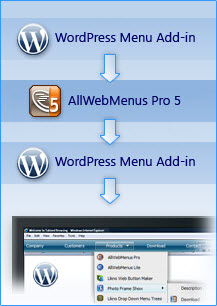
The AllWebMenus WordPress Menu add-in & plugin combination is designed to transfer information from your blog (such as posts, pages, etc.) into the AllWebMenus application and then create stylish, feature-rich navigation menus based on those posts, pages, etc.!
Apart from creating menu items derived from your blog's structure, you can also fully customize your menus by adding your own non-WordPress menu items with external or internal links, html-rich content, colors, borders, effects, designs of your choice and many more!
The solution consists of a combination of 2 parts:
Our AllWebMenus Pro application... (1/2)
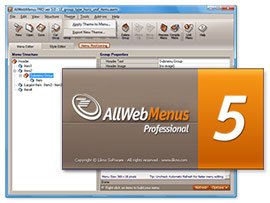
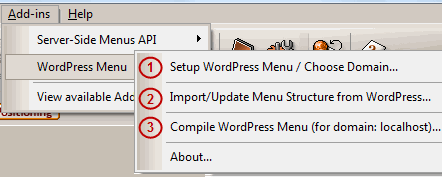
Use the application's "WordPress Menu Add-in" to setup your menu for your specific WordPress blog, import/update the menu structure from there and eventually compile the menu for use on those pages. Licensing details.
& ...our special "WordPress Menu" Plugin (2/2)
Install the plugin online on your WordPress blog.
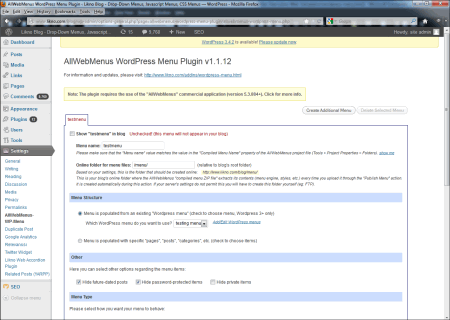
Through this plugin you can generate the Menu Structure Code to paste it into AllWebMenus. You can choose there what information of your blog should be part of your menu (like what pages, posts, etc.), what menu hierarchy to use and what options.
You can then further process your menu with the hundreds of options that the AllWebMenus desktop application offers and compile/upload it to your WordPress blog.
Note that you are not restricted to the specific WordPress structure for your menu items. You also can create menus with your own menu items regardless of the WordPress content (see "Static" or "Mixed" population method below).
The WordPress plugin supports 3 menu population methods:
- "Dynamic" population: The menu is populated with items dynamically (online), based on a WordPress menu. The AllWebMenus project is used to provide only the styling/behaviors of the menu; not its items.
- "Static" population: The menu is populated with items edited within AllWebMenus only. Any changes to your online website do not affect your menu items. So, AllWebMenus provides both the structure and the styling/behaviors of the menu.
- "Mixed" population: This is a mix of "Dynamic" and "Static". The menu is populated both with items edited within AllWebMenus and with items created online (through a WordPress menu).
Watch how you can Download AllWebMenus WordPress plugin, install it, create a menu and publish it on your WordPress site.
Download and install the AllWebMenus Plugin on your WordPress blog
Step 1: Download the plugin's zip file
Download our "WordPress Menu" plugin
| Release Version: | 1.1.23 what's new |
| License / Size: |
GNU/GPL 178 KB |
| Requirements: |
AllWebMenus PRO v5.3.926 or above. Download latest AllWebMenus if not installed yet. Note: the "Add-in" (not the "plugin") is already included inside your AllWebMenus installation. |
Step 2: Install the plugin to your WordPress blog
- Use the WordPress Install New Plugin subpanel (found at Plugins Add New Upload) and upload the allwebmenus-wordpress-menu-plugin.zip file you downloaded, if only you are installing it for first time
(if the plugin is already installed you have to use the following install method, or use the automatic update link at Plugins panel).
You can check here for instructions. - Activate the plugin in your administration panel (Plugins Installed Plugins)
Installation through WordPress Admin Panel
- Extract the allwebmenus-wordpress-menu-plugin.zip file you downloaded in the previous step
- Upload the entire allwebmenus-wordpress-menu-plugin folder (not just the files inside) to your plugins directory in your blog (ROOT/wp-content/plugins)
Manual Installation
Configure/Use the AllWebMenus Plugin on WordPress
Step 1: Configure your menu in WordPress Admin Panel
While in WordPress:
- Login to the Admin area of your WordPress blog.
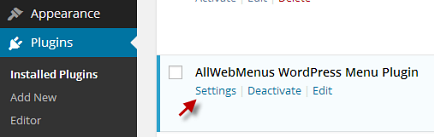
- Go to the Plugins AllWebMenus WordPress Menu Plugin Settings.
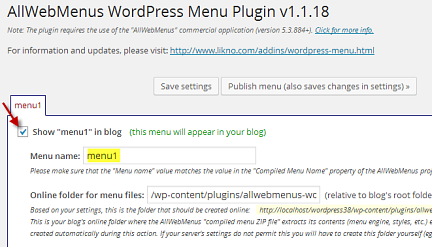
- Check the menu and insert the menu name.
You need to check the checkbox in order to show the menu to your WordPress site.
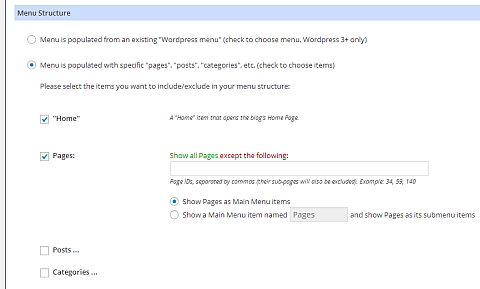
You can leave the default menu name or change it to your desired menu name. - Select the Menu Structure.
You are able to select either an existing WordPress menu or create your own selecting which items you would like to show (for example, Posts, Categories etc.). - Select the Menu Type.
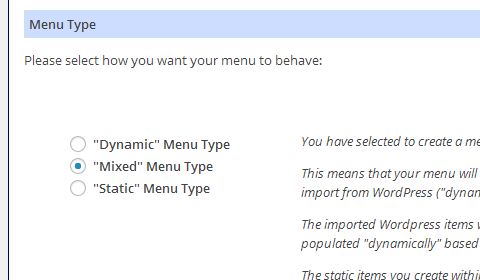
You have 3 choices for menu types:
Dynamic Menu Type, Mixed Menu Type, Static Menu Type. - Select the Menu Positioning.
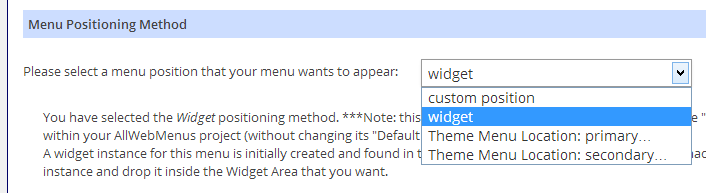
You can select Custom Position, Widget or Theme Menu Location (any menu position your theme offers). - Click on "Publish menu (also saves changes in settings)".
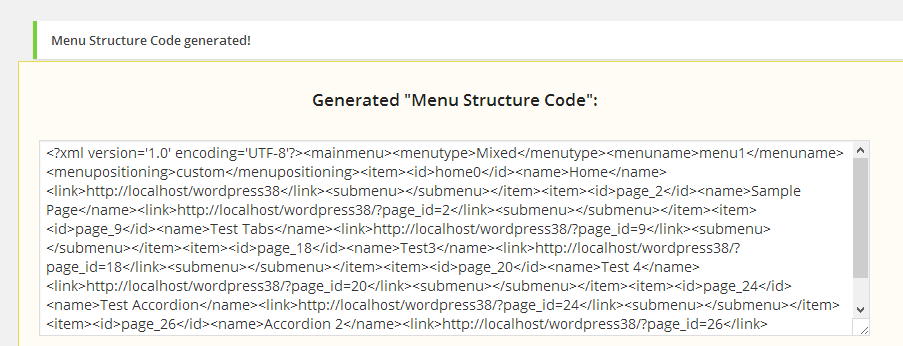
- You will be transfered to the Menu Structure Code tab.
Copy the menu structure code as you need to import it in AllWebMenus Pro.

Step 3: Import menu structure to AllWebMenus
Switch to the AllWebMenus desktop application:
- Go the the "Add-ins -> WordPress Menu" options:
- Choose the "Import/Update Menu Structure from WordPress" option (item [2] on screenshot).
- Paste the "Menu Structure Code" previously copied from WordPress.
- Configure further your menu (colors, borders, effects, styles, etc.) through the AllWebMenus properties or add your own custom items with their own external or internal links.
Step 3: Compile the menu project
While in AllWebMenus:
- Compile the menu using the "Add-ins -> WordPress Menu -> Compile WordPress Menu" (item [3] on screenshot).
Note: When asked for "Site_Root folder" use any local folder on your hard drive you like for the compiled files to be produced.
Also, do not change any other properties, like the compiled menu name or folders, just leave them default.
Step 4: Upload the compiled menu to your WordPress blog/site
Switch back to AllWebMenus WordPress Menu Plugin
-
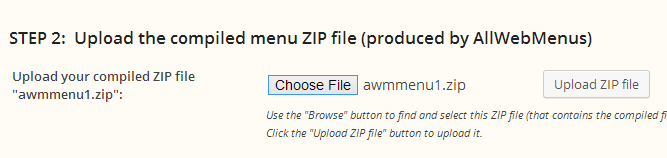
Go to Step 2: Upload the compiled menu ZIP file (produced by AllWebMenus)
Choose the ZIP file produced when you compiled your menu project and click "Upload ZIP file".
The "Yet Another Related Posts" Plugin
The AllWebMenus WordPress Menu Plugin offers the ability to add an item at the end of your menu that contains a submenu that displays the most relevant posts (or pages) of the post you are currently viewing (the item will appear only when you are viewing a single post).
This feature is build on Yet Another Related Posts Plugin by mitcho (Michael Yoshitaka Erlewine).
AllWebMenus PRO
Add-ins
See also...
FrontPage Addin Dreamweaver Extension NOF Component Other supported toolsLike the AllWebMenus WordPress Addin/Plugin?
If you like the AllWebMenus WordPress Menu add-in & plugin please feel free to add a review at the Wordpress.org site.
Client Testimonials
"For over 5 years, the Likno Products have been ones of our most trusted web development tools. With excellent support and regular updates."

"Best menu creator tool out there! But best of all is their support! Friendly, knowledgeable, super to work with, and always keeping up with new technology. I wouldn't go anyplace else!"

"We are web developers and simply love your products. You do a superb job of updating them on a regular basis and they always work!"

Awarded as top software by several reviewers


Warning: Constant ABSPATH already defined in /usr/home/frames/public_html/likno/blog/wp-config.php on line 24
Fatal error: __autoload() is no longer supported, use spl_autoload_register() instead in /usr/home/frames/public_html/likno/blog/wp-includes/compat.php on line 502